高品質な・迅速な・安心できるベトナム語翻訳

言語プロフェッショナルによる高品質なベトナム語翻訳
DỊCH VĂN BẢN TÀI LIỆU KHÓ CHUYÊN MÔN CAO TIẾNG NHẬT * VIETNAMESE ENGLISH HIGH QUALITY TRANSLATION * DICTIONARY AND LANGUAGE TOOL DEVELOPMENT
Showing posts with label trados lesson. Show all posts

Saturday, December 31, 2022

Fix error of cannot saving translated Excel files in Trados 2019

How to fix error: Cannot save (export) translated Excel file in Trados 2019

Error message when trying to export translated Excel file:
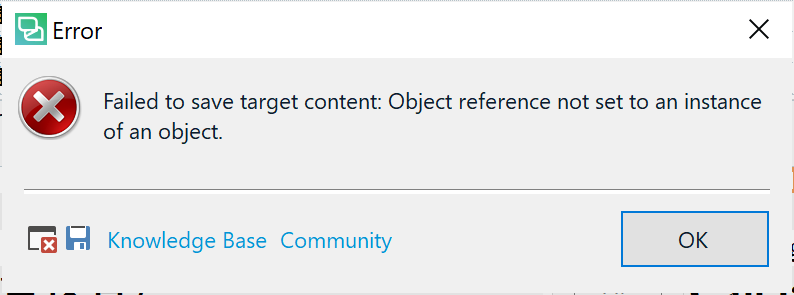

Message content:

Error: Failed to save target content. Object reference not set to an instance of an object.

Cause(s): Japanese file name (the original file name has Japanese characters) / File names containing Unicode character(s) may also cause the problem

Solution: Copy that Excel file to a new file and rename it with an English file name, add it to the project and copy-and-paste translated sentences into it, then export it when finished. 

【日本語内容】トラドスでエクセルファイルを保存できないエラーに対する解決法 

概要:トラドスでエクセルのファイルを翻訳した後、保存(エクスポート)しようとしたらエラーメッセージが出て保存できない。

原因:日本語のファイル名(日本語のシート名も影響するかもしれません)

解決法:日本語のファイル名を英語のファイル名にして、プロジェクトにそのファイルを追加して、訳した訳文を新しいファイルにコピペします。(この場合、Translation Memoryは動作してくれないため、手動的にコピペします)。完了したら翻訳の結果を保存(出力)します。

解決法が見つかるまでの過程

Monday, January 25, 2021

Convert Trados Termbase to Excel

【記事の内容】トラドス用語ベースをエクセルに変換する方法

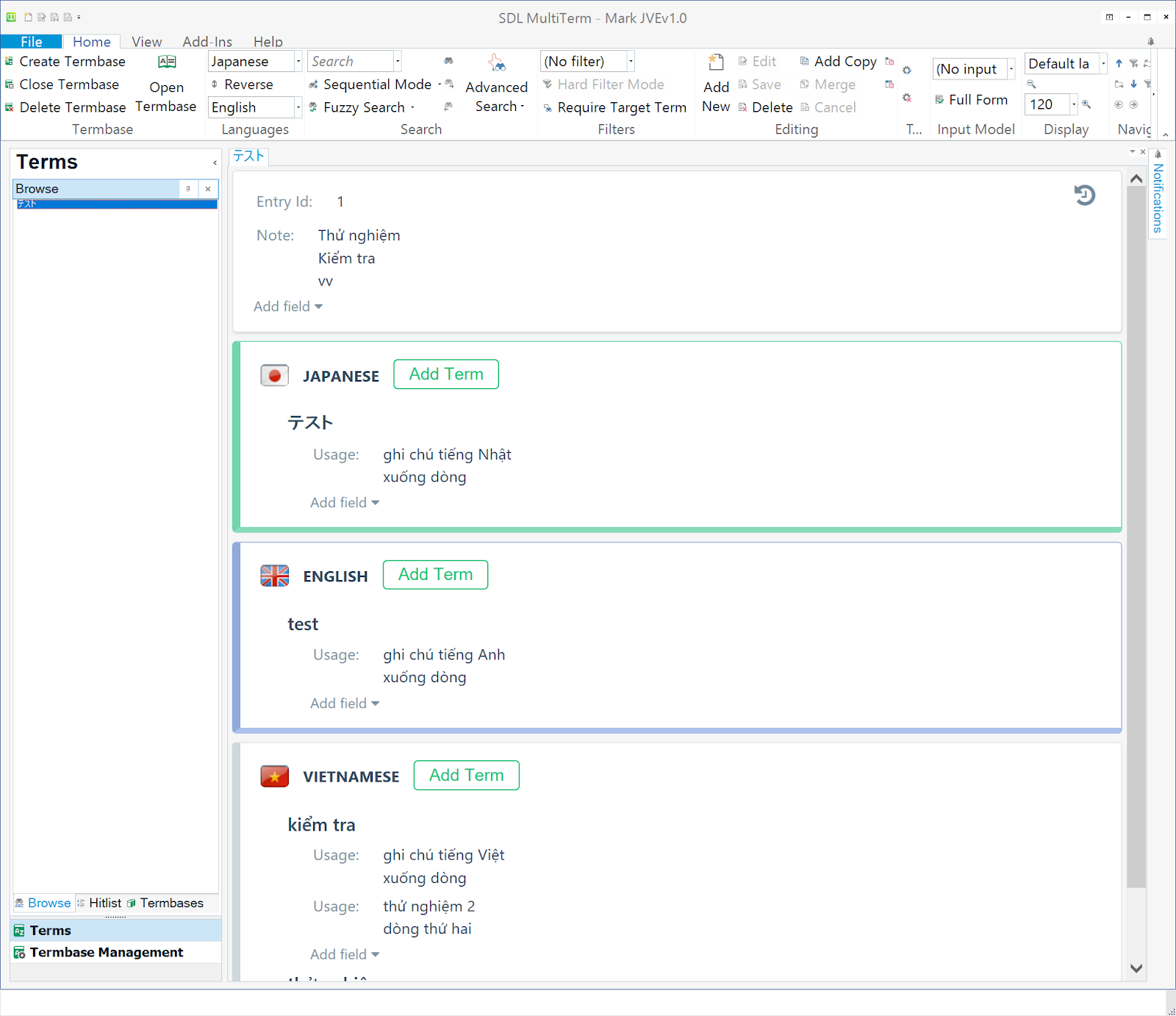
Step 1: Open a termbase with SDL MultiTerm > File > Import & Export > Export Termbase as text file (or XML file).

Step 2: Change text file exported extension from .txt to .xls, double click to open in Excel (some warnings will appear).

Final result:

Result file after converting a Trados termbase to Excel

How to convert Trados Termbase to Excel step by step

Sunday, July 21, 2019

How to make Analyze Files Reports in Trados

We can analyze all files or a file or some files in Trados for "Word count with news words, fuzzy matches, 100% match and repetitions" using Analyze Files Reports.

If you create a Trados project, you get the full analysis by default. The result includes analysis data for total project (all files in the project) and analysis data for any single file.

However, you can also make an Analyze Files Report for a file or some files at any moment, using function Analyze Files in Batch Tasks and the report will appear in 'Reports' in left bottom corner.

Here's a sample for analysis date of a file:


Data items: PerfectMatch, Context Match, Repetitions, Cross-file Repetitions, 100%, 95% - 99%, 85% - 94%, 75% - 84%, 50% - 74%, New/AT, AdaptiveMT Baseline, AdaptiveMT with Learnings, Total.

How to make Analyze Files Reports in Trados

Choose file(s) you want to analyze, or choose a project to analyze all files in the project, then choose 'Analyze Files' from 'Batch Tasks':

'Next >':

Sunday, June 30, 2019

Fix 不良 and 類 bugs in Trados termbase

趣旨:トラドス2017が「不良」と「類」という用語を認識・検索できないことを説明する。これを含む翻訳セグメント(センテンス)は用語の認識ができないため、訳しづらく効率が悪い。この記事でその対策を講じる。

SDL Trados Studio 2017 has bugs with 不良 and 類 as it cannot search and suggest translation for these terms (不良 and 類).

Therefore, if a sentence (translation segment) has one of these terms, no translation options will be shown not only for 不良 and 類 but for other terms in the sentence as well.

Bug of 不良:
"Searching for terms" in Term Regconition panel forever:


Same with 類:


Here's the list of Japanese terms unable or difficult to search in Trados 2017:

List of unfavorable Japanese terms in Trados 2017
不良 × (unable to search)
類  × (unable to search)
良好 △ (difficult  to search)
種類 △ (difficult  to search)
衣類 △ (difficult  to search)
... and counting. (See full list below)

Terms like 良好, 種類, 衣類 are only difficult to search, to add to termbase, etc. but you still can deal with them, so they still work in Trados (no need to fix them). I listed them here just for reference purpose in the future.

More detail and solution for 不良 and 類 bugs in Trados 2017

Friday, March 15, 2019

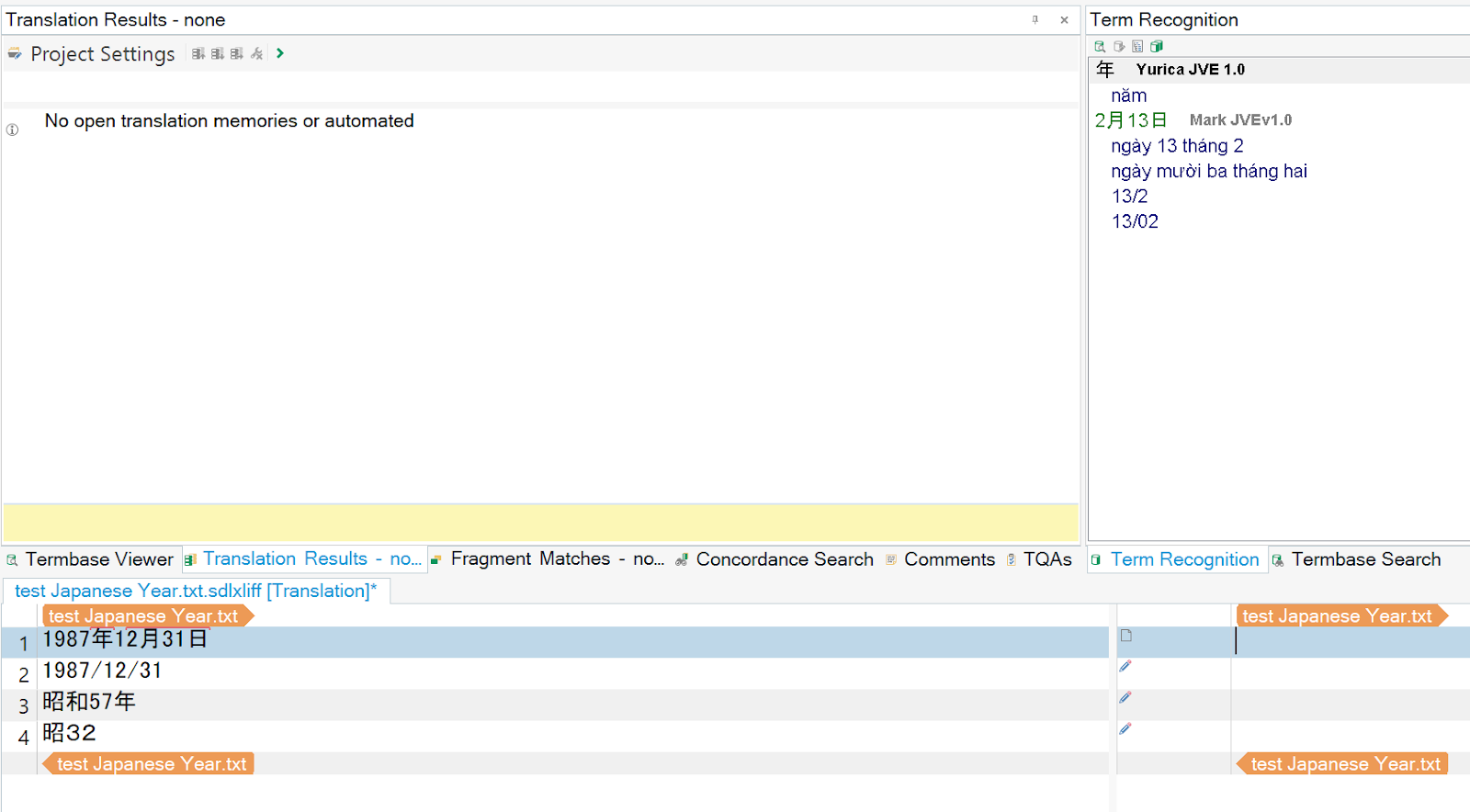
Testing using date and year TM (translation memory) in Trados

Using this Excel to make a TM file (.TMX) and import to Trados TM (see guide):


Here's the result using this TM to translate document automatically:

Mark T.

Convert Excel termbase to Translation Memory in Trados

趣旨:エクセル用語(ベース)から翻訳メモリ(TM)へ変換する

My purpose is to get dates and time in Japanese automatically translated into Vietnamese dates and time.
Example:
12時34分56秒 => 12 giờ 34 phút 56 giây

I have created a termbase to translate dates but it does not work correctly with entries starts with numbers. This issue inspires me to create a translation memory (TM) to get dates and time translated automatically.

Step 1:
To do this, first I create an Excel file with 2 columns:
First column: Phrases to be translated
Second column: Translated phrases

Step 2:
Then I use a free tool (for Trados user) call Glossary Converter downloaded from SDL* AppStore to convert the Excel file into TM file (.tmx format).

Simply DRAG and DROP the Excel file into Glossary Converter window.

Glossary Converter, a free tool to convert Excel to Translation Memory

Step 3:
Finally, I create a TM using Trados SDL and import the above .tmx file.

THE FULL PICTURE GUIDE: EXCEL TO TM CONVERSION

Test of creating a date termbase

内容:和暦と陽暦や日付を翻訳する用語ベースの作成

I've made a Trados termbase to translate between Japanese calendar (和暦), Western calendar (陽暦) and dates in Japanese, English, Vietnamese like this:


However, it does not work well with numbers:


Trados does not regconize the dates correctly due to numbers.

It works fine with Japanese years starting with kanji letters:

Tuesday, February 12, 2019

Using SDL MultiTerm Widget to look up words

After installed SDL MultiTerm Widget, it will start each time you start Windows and its icon appears in taskbar:


Click the icon to open it:


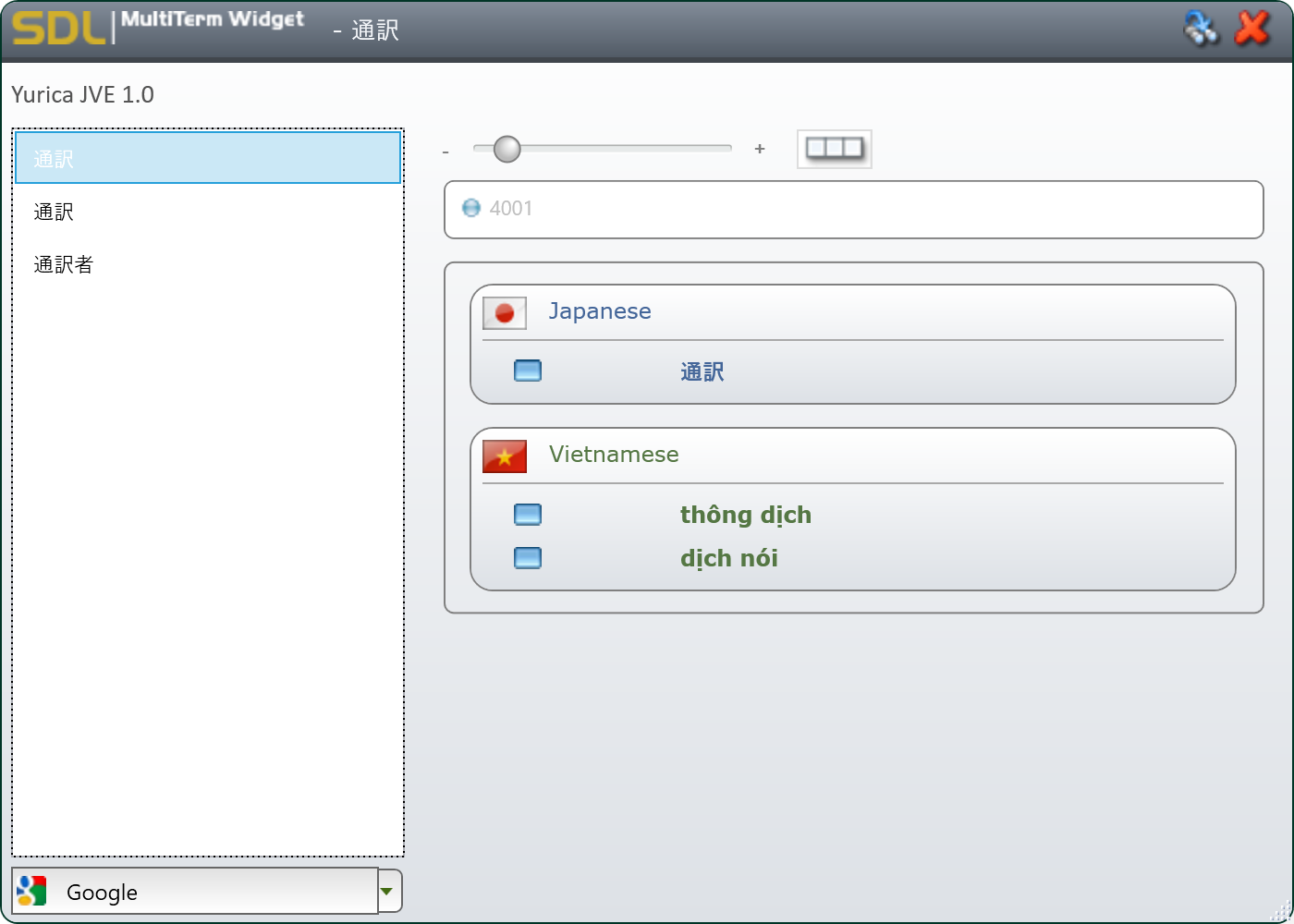
Now you can type the word you want to look up and Enter to show the result, for example to look up 通訳 (interpret):


Is there any way to look up a word in SDL MultiTerm Widget without retyping it? Especially a word on a website?

How to create a Project Package in Trados

Here's Trados SDL's guide to Create Project Package: Create Project Package Wizard.
Use the Create Project Package wizard to create project packages that contain all of the files that need to be sent to a project team member in order for them to commence work on the project. Project packages have an extension of *sdlppx.
To display this wizard, select Project > Create Project Package from the menu bar in any view or select files in the Files view, right-click and then select Create Project Package from the shortcut menu.
Picture:


Choose a project and click 'Create Project Package' icon in Home ribbon.

However, in Freelance license, this function is disabled:


Saying "Please upgrade your license to enable this feature".

I did search about licensing: About Editions and Licensing
Freelance
SDL Trados Studio 2009 Freelance is different from the Professional version in the following ways:
You can only work with five languages. You cannot change your language selections later.
You can use AutoSuggest dictionaries but you cannot create them.
NOTE
If you want to create AutoSuggest dictionaries, a separate AutoSuggest license enables you to do this.
You cannot use SDL Trados Studio 2009 Freelance on a computer that is part of a domain-based corporate network.
You can open and work with project packages but you cannot create them. You can create return packages to return your completed work.
You cannot create custom task sequences.

You must have a Professional license to create Project Packages.

By the way, price of SDL Trados Studio 2019 (Single User) at this momment is 2,495 Euros at SDL Trasos Store.


Mark T.

How to Create Return Package in Trados

Sometimes our clients send us Trados Project Package (***.sdlppx file) for we to translate, review or fix. We must send them a Return Package.

Here's how to create a return package (***.sdlrpx file) from a project package.

1. Double click project package file (.sdlppx file) to open as a project.
2. In the left panel click 'Projects' to show all current project.
Click to choose project package.
3. In Home ribbon, there's an icon called 'Create Return Package', click it and save return package file (.sdlrpx file).

Look like this:


Project package and return package files when saved in same folder:


The project package file (.sdlppx) has an icon of an open box and green arrow pointed inside.
The return package file (.sdlrpx) has an icon of a taped closed box.

Trados's guide for Creating a return package: How to Return Completed Work in a Return Package

Mark T.

Monday, February 11, 2019

How to edit Translation Memory (TM) in Trados

Double click TM you want to edit to open it.


Click 'Perform Search', input Source Text and/or Target Text to search the text you want to edit.
Edit the text, the line you editted will be highlighted.
Click 'Commit Changes'.


Click 'Yes' to confirm.
Warning: This action cannot be undone.

There're 2 options for Commit Changes:
- Commit Changes and Re-Apply Search
- Commit Changes and Clear Search

Meon Vietnamese Translation

Saturday, February 9, 2019

Using AdaptiveMT (Adaptive Machine Translation) in Trados

How to enable and use AdaptiveMT (Adaptive Machine Translation) in Trados
1. Open your translation project, go to "Project Settings" > Choose 'Language Pairs' in left pane > 'All Language Pairs' > 'Translation Memory'
2. In right window click 'Use...' to see the droplist and choose 'SDL Language Cloud Machine Translation...'
3. Click 'Manage Adaptive Engines' > Click 'New Adaptive Engine' to add one > Input 'Engine Name', choose 'Source Language' and 'Target Language'

However, at this moment we can create AdaptiveMT engine for language pairs between English and one of theses languages: Chinese, Dutch, French, Italian, Japanese, Portuguese, Spanish. Vietnamese language is not supported.

Picture guide to use AdaptiveMT in Trados:


Thursday, February 7, 2019

How to install SDL MultiTerm Widget

How to download and using SDL MultiTerm Widget.

SDL MultiTerm Widget somehow disappeared from my PC when I re-installed or upgraded my SDL Studio 2017.

Here's Trados's guide to install and using SDL MultiTerm Widget with your Trados license for free.
Article: The SDL MultiTerm Widget and how to add custom search providers.

Search for SDL MultiTerm Widget at SDL AppStore: https://appstore.sdl.com/

Result: SDL MultiTerm Widget 2017 does not work with my SDL Studio 2017 (installed successfully but didn't start).

SDL MultiTerm Widget 2015 works fine:


How to download SDL MultiTerm Widget

The SDL MultiTerm Widget allows you to organize the vast number of terminology collections and search engines available on the internet and makes them available for you in one single place while you work. It is a desktop toolbar application that was developed to allow users who manage terminology to share this work across any medium.
In a nutshell the Widget provides features that enable everyone in your company to:
Look up terminology approved in MultiTerm termbase from within a browser, DTP tool, Microsoft Office applications, text editor and so on, without needing to have a complete terminology solution installed and without needing to know how to use one.
Look up words for their meaning or translation within predefined online dictionaries like Wikipedia or Leo.
Use more formal sources or online dictionaries from resources like IATE (InterActive Terminology for Europe) or Duden.
Go outside the world of terminology and plan your route using Google Maps, search for people on LinkedIn or look for a video on YouTube. The list is endless...
The Widget can be installed together with SDL MultiTerm 2011, but it is also available as a separate installer in the My Downloads area of your SDL Account area if you own SDL MultiTerm. You can also download it from the SDL OpenExchange.
The default Widget installer uses five predefined search providers:
SDL MultiTerm Widget (for MultiTerm Termbases)
Google
Bing
Linguee
Wikipedia
How to use SDL MultiTerm Widget
1. Install your SDL MultiTerm Widget and open it.
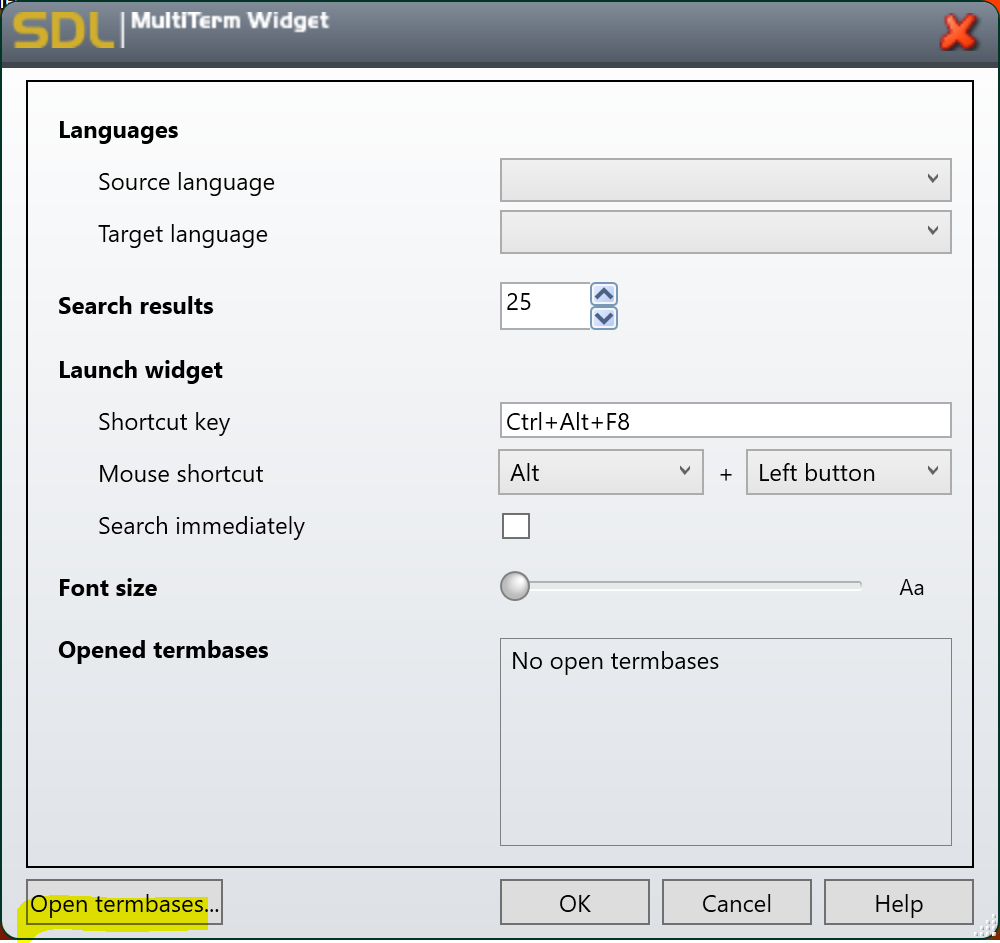
2. Click on the Configure button in the right upper corner
​3. Click on the Open Termbases button, find the termbase file *.sdltb on your machine (or server) and click OK
4. Configure your preferences.
5. Click on the Help button to open the online help pages for Setting up the SDL MultiTerm Widget.
6. When finished, click OK. You can use as many termbases as you like.
7. Once you have configured your settings, you are ready to use it. There are various options, depending on your personal preferences:
Select your word, for example download, and use your mouse shortcut (by default [Alt]+left button) or keyboard shortcut (by default [Ctrl+Alt+F8]):
You can also simply type in your search by calling up the Widget when needed
SGA Translation

Tuesday, January 29, 2019

トラドス:日本の数字とローマ字の数字は別物

In Trados, Japanese numbers (1234567890) and alphabet numbers (1234567890) are different.

トラドスの用語ベースにおいて日本語の数字(全角の数字、1234567890)とアルファベットの数字(半角の数字1234567890)は別物です。

用語ベース作成時に要注意です。両方追加する必要があります。
例えば「平成27年」(全角)と「平成27年」(半角)です。
また、「平成二十七年」「平成二〇七年」も追加したほうが良いでしょう。

今回のテスト:
用語ベースには半角数字を使います。


翻訳時、全角数字は用語として認識されません。


が、半角数字は認識されます。

SGAベトナム語翻訳

Sunday, January 27, 2019

Using Google Cloud Translation API (Google Translate) with Trados

In this article, I make a demo of utilizing Google Cloud Translation (Google Translate) service within Trados project. We need an API key of Google Cloud Platform for Google Cloud Translation service, which I will explain later.

WARNING: Using Google Translate may violate your non-disclosure agreement with your translation customer. Check with your customer prior to connecting to this translation provider. The use of Google Translate is recorded in the SDL XLIFF bilingual file during translation.

In short, your translation and your client's content will be availble in Google Translate service, which breaks your confidentiality obligation with your client.

趣旨:トラドスにおけるGoogle自動翻訳(Google Translate)の活用、Google Cloud Translation API
警告:Google Translateを活用するとクライアントとの守秘義務を違反することになりかねるため、事前にクライアントと確認する必要がある。

For safety, you should use Google Automated Translation to translate terms, phrases, sentences etc. not relating to your client.

Step 1: Open your Trados project > 'Project Settings' > 'Translation Memories and Automated Translation' > 'Use...' > 'Google Cloud Translation API...'


Step 2: Warning "...data will no longer be deemed confidential and could be stored by the third party supplier to train its machine translation engines. ..." > 'Yes'

Sunday, December 16, 2018

Trados Termbase: Linebreak in descriptive fields & Convert Excel with descriptive fields into termbase

I put some linebreaks in descriptive fields in my test termbase:


Because .sdltb file (termbase file) is encoded, we cannot see its content as text, so we must export it to XML format to view its content:

Trados: Copy a termbase's definition to make a new termbase with the same structure

How to copy an existing termbase's definition (structure) to make a new termbase with the same definition (structure).

趣旨:既存の用語ベースの構造(定義)をコピーして同じ構造(定義)の新しい用語ベースを作成する

1. Start SDL MultiTerm


2. 'Open Termbase' => Choose existing termbase you want to copy definition

Thursday, December 13, 2018

Trados: How to update project translation memories

趣旨:翻訳プロジェクト内の翻訳メモリに翻訳した分を更新する

Purpose: Updating project TM in the middle of the work to utilize translated sentences or phrases in the rest of the work.

Step 1: Mark translated segments as "Translated"
Navigate cursor to the segment and:
'Change Segment Status' > 'Translated'
Or 'Confirm' dropdown list > 'Confirm and Move to Next Unconfirmed Segment'
Or use the shortcut Ctrl + Enter


Do this for all translated segments:


Step 2: Batch Tasks > 'Update Project Translation Memories'
Be sure you have created or added a TM for your project.

Friday, November 30, 2018

Trados: How to update your translation to Translation Memory (TM)

We use our termbases (glossaries) and translation memories (TMs) that we prepared in advance (through our previous translations) to speed-up our current translation.

After finished our translation, or in the middle of the translation, we want to update it to our TM to utilize in the future.

Here' show to update our translation to Translation Memory (TM) in Trados in several simple steps.

趣旨:トラドスにおいて翻訳済みファイルを翻訳メモリ(TM)に更新(アップデート)する方法

Step 1: Home tab > Batch Tasks > Update Main Translation Memories
You have 2 options:
"Update Main Translation Memories", and
"Update Project Translation Memories"

I choose "Update Main Translation Memories" (the TM that I used from the beginning).


Step 2: Batch Processing > Batch Tasks > 'Next'

Thursday, October 25, 2018

Trados: Export external biligual file for review

Abstract: Exporting external bilingual MS Word file for reviewing in Trados
日本語趣旨:トラドスにおけるレビュー用ワードファイルのエクスポート

Here's final result:

You can copy its content to an Excel file or another Word file.

Steps to create external bilingual review file in Trados