Sometimes our clients send us Trados Project Package (***.sdlppx file) for we to translate, review or fix. We must send them a Return Package.
Here's how to create a return package (***.sdlrpx file) from a project package.
1. Double click project package file (.sdlppx file) to open as a project.
2. In the left panel click 'Projects' to show all current project.
Click to choose project package.
3. In Home ribbon, there's an icon called 'Create Return Package', click it and save return package file (.sdlrpx file).
Look like this:
Project package and return package files when saved in same folder:
The project package file (.sdlppx) has an icon of an open box and green arrow pointed inside.
The return package file (.sdlrpx) has an icon of a taped closed box.
Trados's guide for Creating a return package: How to Return Completed Work in a Return Package
Mark T.
高品質な・迅速な・安心できるベトナム語翻訳

DỊCH VĂN BẢN TÀI LIỆU KHÓ CHUYÊN MÔN CAO TIẾNG NHẬT * VIETNAMESE ENGLISH HIGH QUALITY TRANSLATION * DICTIONARY AND LANGUAGE TOOL DEVELOPMENT
Tuesday, February 12, 2019
Monday, February 11, 2019
How to edit Translation Memory (TM) in Trados
Double click TM you want to edit to open it.
Click 'Perform Search', input Source Text and/or Target Text to search the text you want to edit.
Edit the text, the line you editted will be highlighted.
Click 'Commit Changes'.
Click 'Yes' to confirm.
Warning: This action cannot be undone.
There're 2 options for Commit Changes:
- Commit Changes and Re-Apply Search
- Commit Changes and Clear Search
Meon Vietnamese Translation
Click 'Perform Search', input Source Text and/or Target Text to search the text you want to edit.
Edit the text, the line you editted will be highlighted.
Click 'Commit Changes'.
Click 'Yes' to confirm.
Warning: This action cannot be undone.
There're 2 options for Commit Changes:
- Commit Changes and Re-Apply Search
- Commit Changes and Clear Search
Meon Vietnamese Translation
Saturday, February 9, 2019
Using AdaptiveMT (Adaptive Machine Translation) in Trados
How to enable and use AdaptiveMT (Adaptive Machine Translation) in Trados
1. Open your translation project, go to "Project Settings" > Choose 'Language Pairs' in left pane > 'All Language Pairs' > 'Translation Memory'
2. In right window click 'Use...' to see the droplist and choose 'SDL Language Cloud Machine Translation...'
3. Click 'Manage Adaptive Engines' > Click 'New Adaptive Engine' to add one > Input 'Engine Name', choose 'Source Language' and 'Target Language'
However, at this moment we can create AdaptiveMT engine for language pairs between English and one of theses languages: Chinese, Dutch, French, Italian, Japanese, Portuguese, Spanish. Vietnamese language is not supported.
Picture guide to use AdaptiveMT in Trados:
1. Open your translation project, go to "Project Settings" > Choose 'Language Pairs' in left pane > 'All Language Pairs' > 'Translation Memory'
2. In right window click 'Use...' to see the droplist and choose 'SDL Language Cloud Machine Translation...'
3. Click 'Manage Adaptive Engines' > Click 'New Adaptive Engine' to add one > Input 'Engine Name', choose 'Source Language' and 'Target Language'
However, at this moment we can create AdaptiveMT engine for language pairs between English and one of theses languages: Chinese, Dutch, French, Italian, Japanese, Portuguese, Spanish. Vietnamese language is not supported.
Picture guide to use AdaptiveMT in Trados:
Thursday, February 7, 2019
How to install SDL MultiTerm Widget
How to download and using SDL MultiTerm Widget.
SDL MultiTerm Widget somehow disappeared from my PC when I re-installed or upgraded my SDL Studio 2017.
Here's Trados's guide to install and using SDL MultiTerm Widget with your Trados license for free.
Article: The SDL MultiTerm Widget and how to add custom search providers.
Search for SDL MultiTerm Widget at SDL AppStore: https://appstore.sdl.com/
Result: SDL MultiTerm Widget 2017 does not work with my SDL Studio 2017 (installed successfully but didn't start).
SDL MultiTerm Widget 2015 works fine:
SDL MultiTerm Widget somehow disappeared from my PC when I re-installed or upgraded my SDL Studio 2017.
Here's Trados's guide to install and using SDL MultiTerm Widget with your Trados license for free.
Article: The SDL MultiTerm Widget and how to add custom search providers.
Search for SDL MultiTerm Widget at SDL AppStore: https://appstore.sdl.com/
Result: SDL MultiTerm Widget 2017 does not work with my SDL Studio 2017 (installed successfully but didn't start).
SDL MultiTerm Widget 2015 works fine:
How to download SDL MultiTerm Widget
The SDL MultiTerm Widget allows you to organize the vast number of terminology collections and search engines available on the internet and makes them available for you in one single place while you work. It is a desktop toolbar application that was developed to allow users who manage terminology to share this work across any medium.How to use SDL MultiTerm Widget
In a nutshell the Widget provides features that enable everyone in your company to:
Look up terminology approved in MultiTerm termbase from within a browser, DTP tool, Microsoft Office applications, text editor and so on, without needing to have a complete terminology solution installed and without needing to know how to use one.
Look up words for their meaning or translation within predefined online dictionaries like Wikipedia or Leo.
Use more formal sources or online dictionaries from resources like IATE (InterActive Terminology for Europe) or Duden.
Go outside the world of terminology and plan your route using Google Maps, search for people on LinkedIn or look for a video on YouTube. The list is endless...
The Widget can be installed together with SDL MultiTerm 2011, but it is also available as a separate installer in the My Downloads area of your SDL Account area if you own SDL MultiTerm. You can also download it from the SDL OpenExchange.
The default Widget installer uses five predefined search providers:
SDL MultiTerm Widget (for MultiTerm Termbases)
Bing
Linguee
Wikipedia
1. Install your SDL MultiTerm Widget and open it.SGA Translation
2. Click on the Configure button in the right upper corner
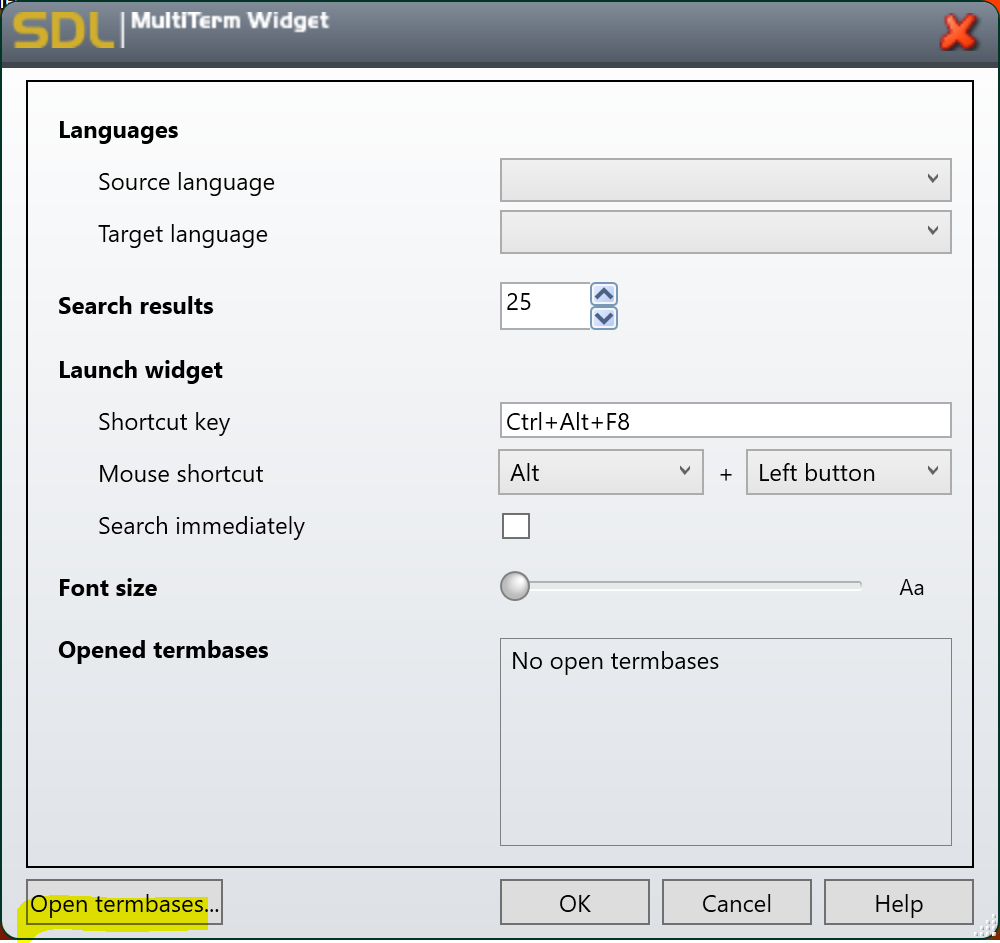
3. Click on the Open Termbases button, find the termbase file *.sdltb on your machine (or server) and click OK
4. Configure your preferences.
5. Click on the Help button to open the online help pages for Setting up the SDL MultiTerm Widget.
6. When finished, click OK. You can use as many termbases as you like.
7. Once you have configured your settings, you are ready to use it. There are various options, depending on your personal preferences:
Select your word, for example download, and use your mouse shortcut (by default [Alt]+left button) or keyboard shortcut (by default [Ctrl+Alt+F8]):
You can also simply type in your search by calling up the Widget when needed
Tuesday, January 29, 2019
トラドス:日本の数字とローマ字の数字は別物
In Trados, Japanese numbers (1234567890) and alphabet numbers (1234567890) are different.
トラドスの用語ベースにおいて日本語の数字(全角の数字、1234567890)とアルファベットの数字(半角の数字1234567890)は別物です。
用語ベース作成時に要注意です。両方追加する必要があります。
例えば「平成27年」(全角)と「平成27年」(半角)です。
また、「平成二十七年」「平成二〇七年」も追加したほうが良いでしょう。
今回のテスト:
用語ベースには半角数字を使います。
翻訳時、全角数字は用語として認識されません。
が、半角数字は認識されます。
SGAベトナム語翻訳
トラドスの用語ベースにおいて日本語の数字(全角の数字、1234567890)とアルファベットの数字(半角の数字1234567890)は別物です。
用語ベース作成時に要注意です。両方追加する必要があります。
例えば「平成27年」(全角)と「平成27年」(半角)です。
また、「平成二十七年」「平成二〇七年」も追加したほうが良いでしょう。
今回のテスト:
用語ベースには半角数字を使います。
翻訳時、全角数字は用語として認識されません。
が、半角数字は認識されます。
SGAベトナム語翻訳
Sunday, January 27, 2019
Using Google Cloud Translation API (Google Translate) with Trados
In this article, I make a demo of utilizing Google Cloud Translation (Google Translate) service within Trados project. We need an API key of Google Cloud Platform for Google Cloud Translation service, which I will explain later.
WARNING: Using Google Translate may violate your non-disclosure agreement with your translation customer. Check with your customer prior to connecting to this translation provider. The use of Google Translate is recorded in the SDL XLIFF bilingual file during translation.
In short, your translation and your client's content will be availble in Google Translate service, which breaks your confidentiality obligation with your client.
趣旨:トラドスにおけるGoogle自動翻訳(Google Translate)の活用、Google Cloud Translation API
警告:Google Translateを活用するとクライアントとの守秘義務を違反することになりかねるため、事前にクライアントと確認する必要がある。
For safety, you should use Google Automated Translation to translate terms, phrases, sentences etc. not relating to your client.
Step 1: Open your Trados project > 'Project Settings' > 'Translation Memories and Automated Translation' > 'Use...' > 'Google Cloud Translation API...'
Step 2: Warning "...data will no longer be deemed confidential and could be stored by the third party supplier to train its machine translation engines. ..." > 'Yes'
WARNING: Using Google Translate may violate your non-disclosure agreement with your translation customer. Check with your customer prior to connecting to this translation provider. The use of Google Translate is recorded in the SDL XLIFF bilingual file during translation.
In short, your translation and your client's content will be availble in Google Translate service, which breaks your confidentiality obligation with your client.
趣旨:トラドスにおけるGoogle自動翻訳(Google Translate)の活用、Google Cloud Translation API
警告:Google Translateを活用するとクライアントとの守秘義務を違反することになりかねるため、事前にクライアントと確認する必要がある。
For safety, you should use Google Automated Translation to translate terms, phrases, sentences etc. not relating to your client.
Step 1: Open your Trados project > 'Project Settings' > 'Translation Memories and Automated Translation' > 'Use...' > 'Google Cloud Translation API...'
Step 2: Warning "...data will no longer be deemed confidential and could be stored by the third party supplier to train its machine translation engines. ..." > 'Yes'
Friday, January 11, 2019
【ベトナム語翻訳品質保証】定訳がない場合
定訳:standard translation、generally accepted translation
日本語の文書をベトナム語に翻訳するとき、定訳がない場合がある。ベトナム語に存在しなかったりあまり一般的な単語ではなかったりする。
この場合、ベトナム語翻訳の品質を保証するには、以下の対策を考える。
定訳がない場合のベトナム語翻訳品質保証の方法:
幾つかの翻訳を用意して、ベストな翻訳を使いながら、コメントをつける。
コメント内容はその説明、採用した翻訳を選んだ理由などである。
定訳がない場合のベトナム語翻訳方法
文字通り・性質・特徴・機能・用途などで翻訳する。
必ずコメントをつけて納品する。
というのは、新しい「翻訳の定訳」を創造するわけだ。
もちろん、定訳があるかないかを十分にインターネットで検索してから翻訳すべきである。
How to translated a term without standard translation (generally accepted translation) into Vietnamese
We should prepare several translations and pick the best one, then make a comment all the options and why we've chosen that translation.
To translate a term (concept) without standard accepted translation, we can translate it:
- Literally
- By its characteristic or feature
- By its function or application, etc.
Cách dịch thuật ngữ hay từ ngữ chuyên môn không có cách dịch tiêu chuẩn
Xác nhận không có cách dịch tiêu chuẩn trên Internet.
Dịch ra một vài cách và chọn cách tốt nhất, kèm comment để nêu ra các lựa chọn và giải thích vì sao chọn cách dịch đó.
Để dịch thuật ngữ hay khái niệm không có trong tiếng Việt thì có thể dịch theo Nghĩa đen - Tính chất - Đặc trưng - Chức năng - Mục đích sử dụng vv.
(C) SGA Vietnamese Translation★高品質なベトナム語翻訳